
WordPress Security: Comprehensive Protection Guide
Essential Strategies to Safeguard Your WordPress Website from Threats
Introduction
WordPress powers over 40% of all websites, making it a prime target for hackers and malicious attacks. Implementing robust security measures is not optional – it’s critical for protecting your data, reputation, and business continuity. This guide covers the most effective security practices organized by protection layers, from login security to server-level defenses. Follow these recommendations to significantly reduce your vulnerability to common WordPress attacks.
Outline
- 1. WordPress Login Security
- 2. File Restrictions
- 3. Data Protection
- 4. Database Security
- 5. HTTPS/SSL
- 6. Web Application Firewall
- 7. Security Plugins
- 8. Updates and Backups
1. WordPress Login Security
Use Strong Passwords:

Strong passwords aren’t just about the WordPress admin area – create strong passwords for FTP accounts, databases, hosting accounts, and domain email addresses. Secure passwords should meet these standards:
- -At least 1 uppercase character
- -At least 1 lowercase character
- -At least 1 digit
- -At least 1 special character
- -Minimum 10 characters (longer is better)
Limit Login Attempts:
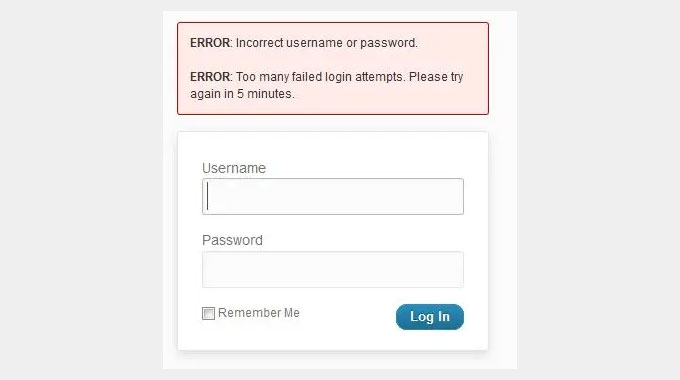
By default, WordPress allows unlimited login attempts, leaving your site vulnerable to brute-force attacks where hackers try password combinations. Add protection by:
- Limiting login attempts through plugins like Limit Login Attempts or Loginizer
- Implementing a Web Application Firewall (WAF)
Change the Default Admin Username:
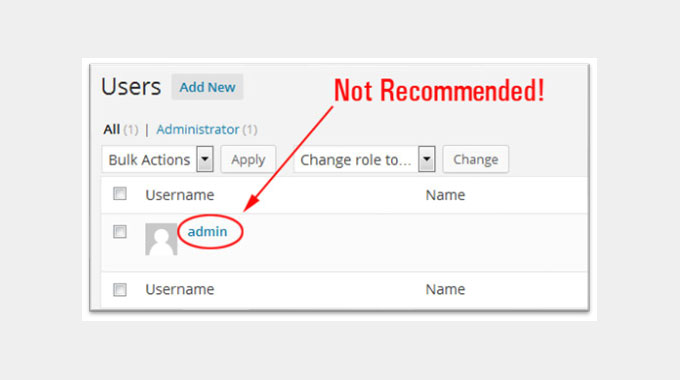
Since usernames make up half of login credentials, the default “admin” username makes brute-force attacks easier. Always create custom usernames during installation.
Use Pre-login CAPTCHAs:
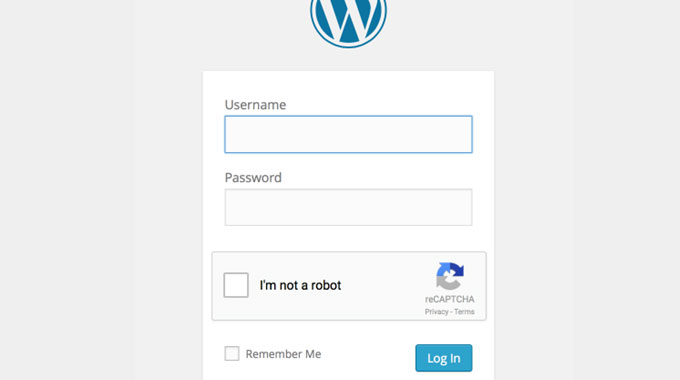
CAPTCHA (Completely Automated Public Turing test to tell Computers and Humans Apart) stops automated bots from accessing your dashboard or submitting spam. Implement using plugins like:
- -reCAPTCHA by BestWebSoft
- -Really Simple CAPTCHA
User Permissions:
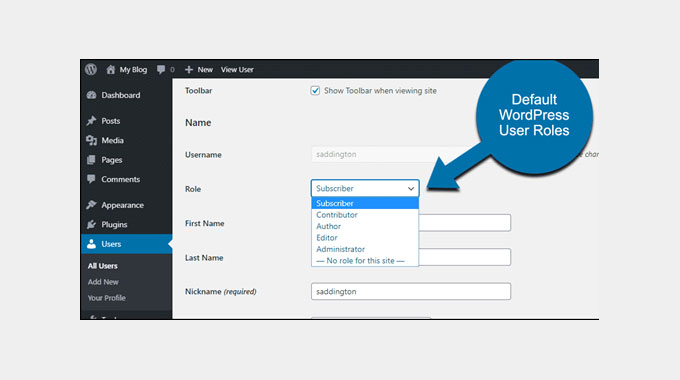
Follow the principle of least privilege – assign only necessary permissions to users. WordPress roles include:
- -Administrator
- -Editor
- -Author
- -Contributor
- -Subscriber
Two-Factor Authentication (2FA):
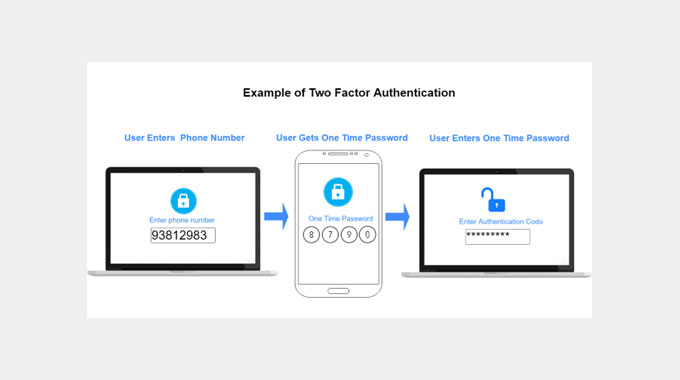
2FA requires two identification forms before granting access:
- -Something you know (password)
- -Something you have (phone/authenticator app)
- -Something you are (biometrics – optional)
Recommended plugin: WP 2FA – Two-factor Authentication
Disable XML-RPC in WordPress:
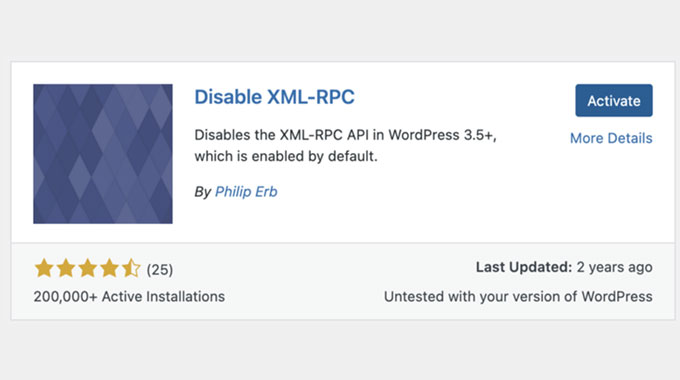
XML-RPC enables remote communication but creates security risks:
- -Brute-force attacks
- -DDoS attacks
- -Pingback abuse
Disable methods:
- -Plugin: Disable XML-RPC
- -Code: Add to functions.php
add_filter('xmlrpc_enabled', '__return_false'); - -.htaccess: Block access to xmlrpc.php
Use a Custom Login URL:
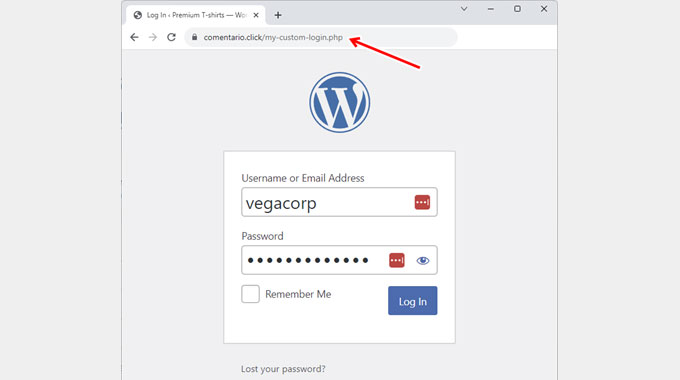
Change default /wp-admin or /wp-login.php to a unique URL:
- Plugin: WPS Hide Login
- Manual method: Rename wp-login.php and update references
- .htaccess redirect rule
Automatically Log Out Idle Users:
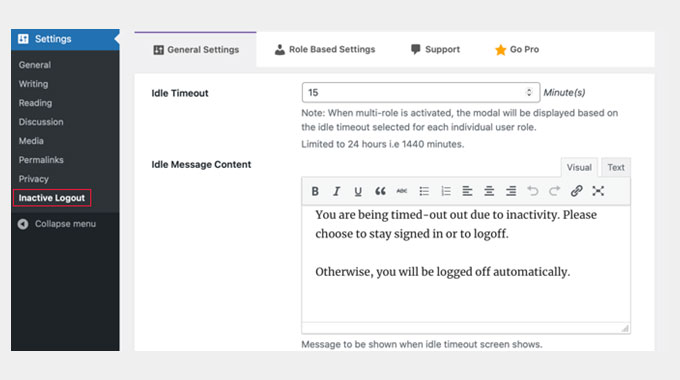
Install Inactive Logout plugin to automatically log out idle users after a set period, preventing unauthorized access from unattended sessions.
2. File Restrictions
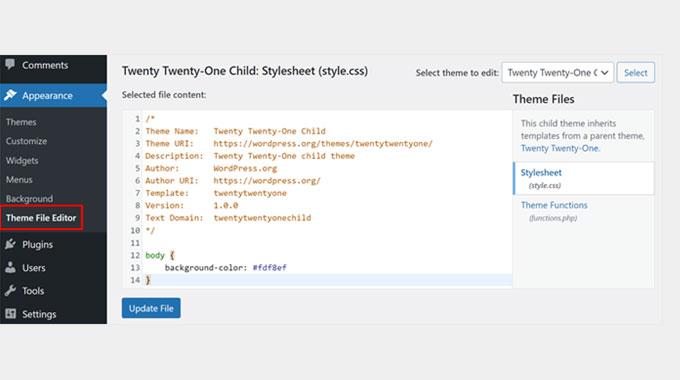
Disable File Editing:
WordPress comes with a built-in code editor that allows editing of theme and plugin files from the admin area. Disable this by adding the following to wp-config.php:
define('DISALLOW_FILE_EDIT', true);
Secure The wp-config.php File:
Move wp-config.php: Move the file one level above the WordPress root directory
Restrict File Permissions: Set permissions to 444 (read-only for all users)
Permission Breakdown:
4 = Read
2 = Write
1 = Execute

444 means:
- Owner: Read-only
- Group: Read-only
- Others: Read-only
Restrict wp-admin Access:
Limit admin dashboard access to specific IPs by editing .htaccess:
Order deny,allow
Deny from all
Allow from 123.456.789.0
Allow from 234.567.890.1
Block Access to wp-includes Directory:
Add this to .htaccess to protect core files:
<FilesMatch "\.(engine|inc|info|install|module|profile|test|po|sh|.*sql|theme|tpl(\.php)?|xtmpl|svn-base)$|^(code-style\.pl|Entries.*|Repository|Root|Tag|Template|all-wcprops|entries|format)$">
Order allow,deny
Disable XML Sitemap:
Add to functions.php to prevent content scanning:
add_filter('wp_sitemaps_enabled', '__return_false');
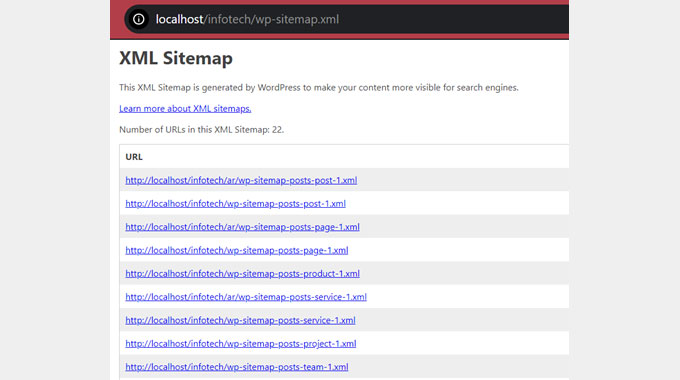
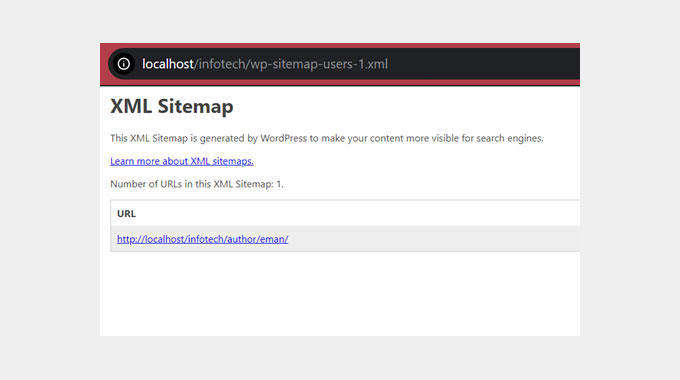
User Enumeration via XML Sitemaps:
Prevent username exposure while keeping sitemaps:
add_filter('wp_sitemaps_add_provider', function($provider, $name) {
return $name === 'users' ? false : $provider;
}, 10, 2);
User Information via REST API:
Restrict user data exposure in REST API:
add_filter('rest_authentication_errors', function($result) {
if (!empty($result)) return $result;
if (!is_user_logged_in()) return new WP_Error('rest_not_logged_in', 'You are not currently logged in.', array('status' => 401));
return $result;
});
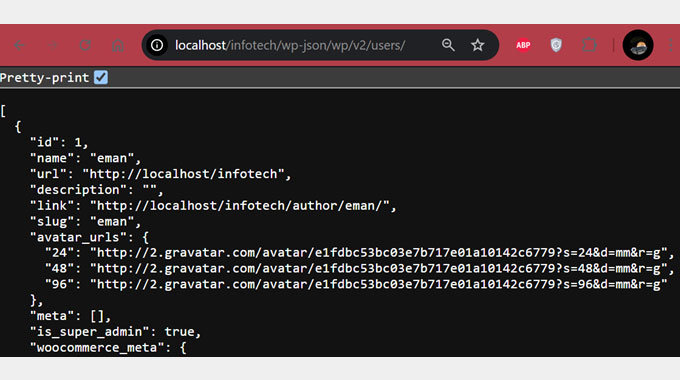
Hiding User Information in the REST API:
Completely remove user endpoints:
add_filter('rest_endpoints', function($endpoints) {
if (isset($endpoints['/wp/v2/users'])) unset($endpoints['/wp/v2/users']);
if (isset($endpoints['/wp/v2/users/(?P[\d]+)'])) unset($endpoints['/wp/v2/users/(?P[\d]+)']);
return $endpoints;
});
Disable Directory Indexing and Browsing:
Add to .htaccess to prevent folder content listing:
Options -Indexes
Disable Error Logs:
Add to wp-config.php to prevent sensitive error exposure:
@ini_set('display_errors', 0);
define('WP_DEBUG', false);
define('WP_DEBUG_DISPLAY', false);
3. Data Protection
Sanitization:
Sanitization ensures that input data is cleaned before being used or stored. It removes unwanted or potentially harmful characters.
// Example sanitization functions
sanitize_text_field();
sanitize_email();
sanitize_key();
sanitize_textarea_field();
Protects Against SQL Injection
SQL Injection occurs when attackers manipulate a website’s database by injecting malicious SQL queries into input fields. WordPress uses wpdb to interact with the database, and sanitizing user inputs ensures harmful characters are removed before database operations.
Validation:
Validation checks whether input conforms to expected format or type.
// Example validation functions
is_email();
is_numeric();
ctype_alpha();
filter_var();
Ensures Data Integrity
Validating and sanitizing data maintains site integrity by ensuring only legitimate input is accepted and processed.
Escaping:
Escaping ensures data is safe for output in HTML, URLs, and other contexts.
// Example escaping functions
esc_html();
esc_attr();
esc_url();
Prevents Cross-Site Scripting (XSS) Attacks
XSS attacks occur when malicious scripts are injected into web pages. Escaping ensures data output to browsers is treated as text rather than executable code.
Nonces for Security:
Use nonces to protect forms from CSRF (Cross-Site Request Forgery) attacks where unauthorized users trick authenticated users into performing unintended actions.
// Adding nonce to form
wp_nonce_field('my_action_name', 'my_nonce_field');
// Verifying nonce when processing form
if (!wp_verify_nonce($_POST['my_nonce_field'], 'my_action_name')) {
die('Security check failed');
}
4. Database Security
Change WordPress Database Prefix:
By default, WordPress uses wp_ as the prefix for all database tables. Change this during installation or later via wp-config.php:
// In wp-config.php
$table_prefix = 'myprefix_';
Database Backups:
Regularly back up your database using plugins or hosting tools.
5. Move The WordPress Site to SSL/HTTPS
SSL encrypts data transfer between your website and users’ browsers. Force HTTPS by adding to wp-config.php:
define('FORCE_SSL_ADMIN', true);
define('FORCE_SSL_LOGIN', true);
And update site URL in Settings → General to use https://
6. Enable a Web Application Firewall (WAF)
Firewall Options:
- Plugin Solutions: Wordfence, Sucuri
- Cloud-Based WAF: Cloudflare, Sucuri Firewall
For Cloudflare, add to .htaccess:
# Cloudflare IPs
Allow from 103.21.244.0/22
Allow from 103.22.200.0/22
# ... (all Cloudflare IP ranges)
Deny from all
7. Use a Security Plugin
Recommended Security Plugins:
1. Wordfence Security
2. iThemes Security
3. Sucuri Security
Essential security plugin settings to enable:
// Example of hardening measures
define('DISALLOW_FILE_EDIT', true);
define('AUTOMATIC_UPDATER_DISABLED', false);
8. Keep WordPress, Themes & Plugins Updated
Update Strategy:
- Enable core auto-updates in wp-config.php:
define('WP_AUTO_UPDATE_CORE', true);
- For plugins/themes, add to functions.php:
add_filter('auto_update_plugin', '__return_true');
add_filter('auto_update_theme', '__return_true');
Backup Solutions:
1. UpdraftPlus (plugin)
2. BackupBuddy (plugin)
3. VaultPress (Jetpack)
4. Hosting-provided backups
Manual Backup Command (via SSH):
# Database backup
mysqldump -u username -p database_name > backup.sql

# Files backup
tar -czvf site_backup.tar.gz /path/to/wordpress